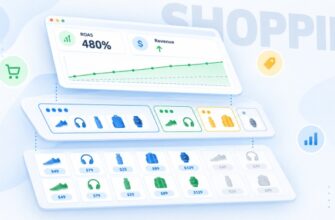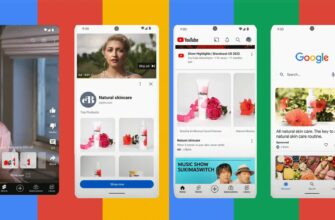
Product ads occupy the top part of the search results—with a photo, price, and the online store’s name. The buyer sees the price even before clicking, so they click through to the site already “warm.” According to Horoshop’s own research, 92.3% of surveyed sellers are satisfied with the results of this channel. And there is great news: setting up Google Shopping on Horoshop is easier than on custom-built websites—the platform generates the feed automatically.
What to Prepare Before Setting Up Google Shopping on Horoshop?
In the Horoshop CMS, the entire process of setting up shopping ads is as automated as possible. The feed is generated in a couple of clicks, updates automatically, and supports two language versions. Therefore, you can launch Google Shopping on Horoshop without a programmer—everything is already built into the system.
However, it’s too early to relax—the search engine strictly moderates online stores. Therefore, before launching Google Shopping on Horoshop, it is important to check the site against a checklist.
Your site must have:
- online payment (LiqPay, PrivatBank’s “Pay in Parts”, monobank);
- pages with delivery, payment, and return policies—filled out, not placeholders;
- contact information: phone number, email, and preferably a physical address;
- up-to-date prices and inventory on product pages;
- high-quality photos without watermarks or promotional text.
Attention. Without online payment and home delivery, the moderator can block the entire feed. Horoshop points out this requirement of the platform itself with a separate warning in its help section.
From Which Horoshop Plan Is the Google Merchant Center Feed Available?
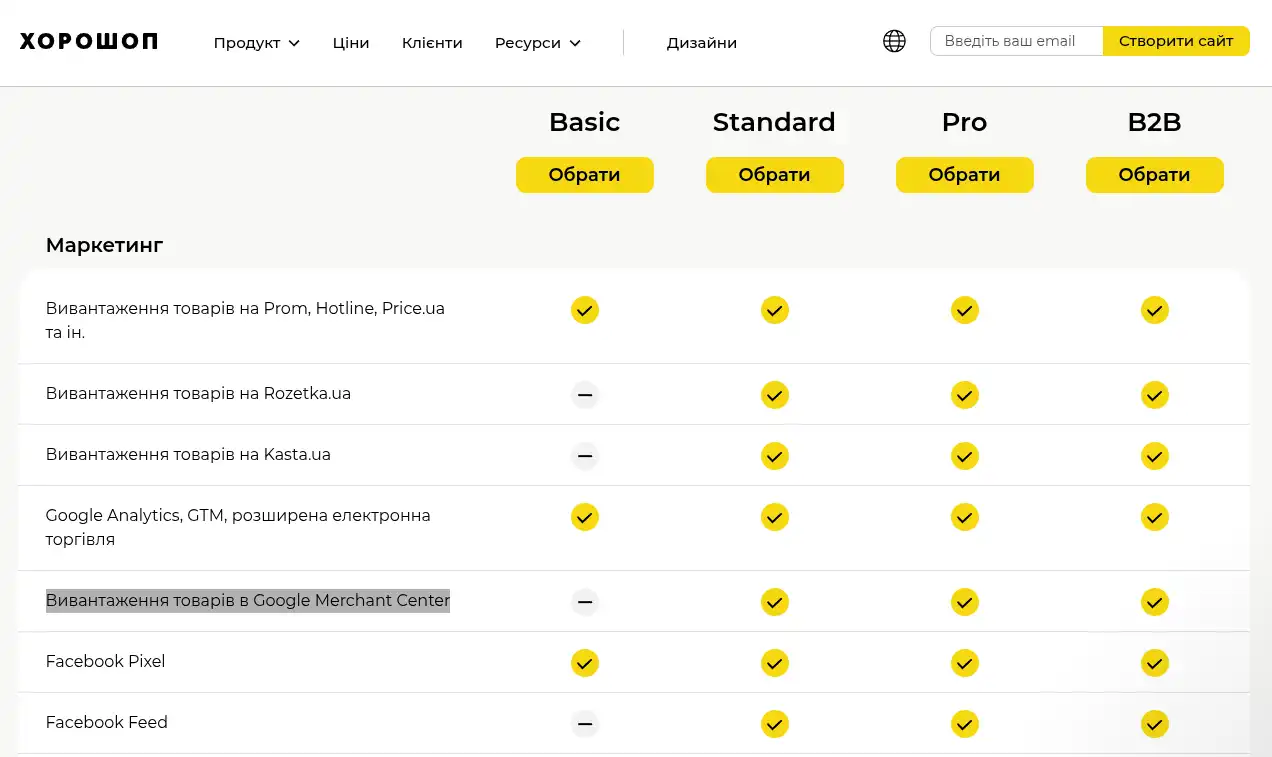
The export feature works starting from the Standard plan and higher. On the Basic plan (288 UAH/month with annual billing), the product feeds section is locked.
Cost guide for 2026:
- Basic — 288 UAH/month, up to 1,000 items in the catalog, no feed for working with Google;
- Standard — 816 UAH/month with annual billing, up to 20,000 items;
- Pro — 1,728 UAH/month with annual billing, up to 50,000 products plus API;
- B2B — 3,360 UAH/month, wholesale portal and the same 50,000 items.
Let’s say a cosmetics store operates on Basic and wants to launch shopping ads. Upgrading to Standard will add approximately 528 UAH per month—less than the cost of a single order with an average order value of 900 hryvnias. Consider this the price of admission.
How Does the Setup of Google Shopping for an Online Store on Horoshop Work?
The entire process is divided into two halves. The first lives in the store’s admin panel: enabling the export, organizing the assortment, mapping categories, and getting the XML link. The second takes place in the Google accounts—the system receives the file, checks it, and passes the catalog into the ads.
Below, each step is broken down individually, including all the spots where novice advertisers usually stumble.
How to Export the Google Merchant Center Feed in the Horoshop Admin Panel?
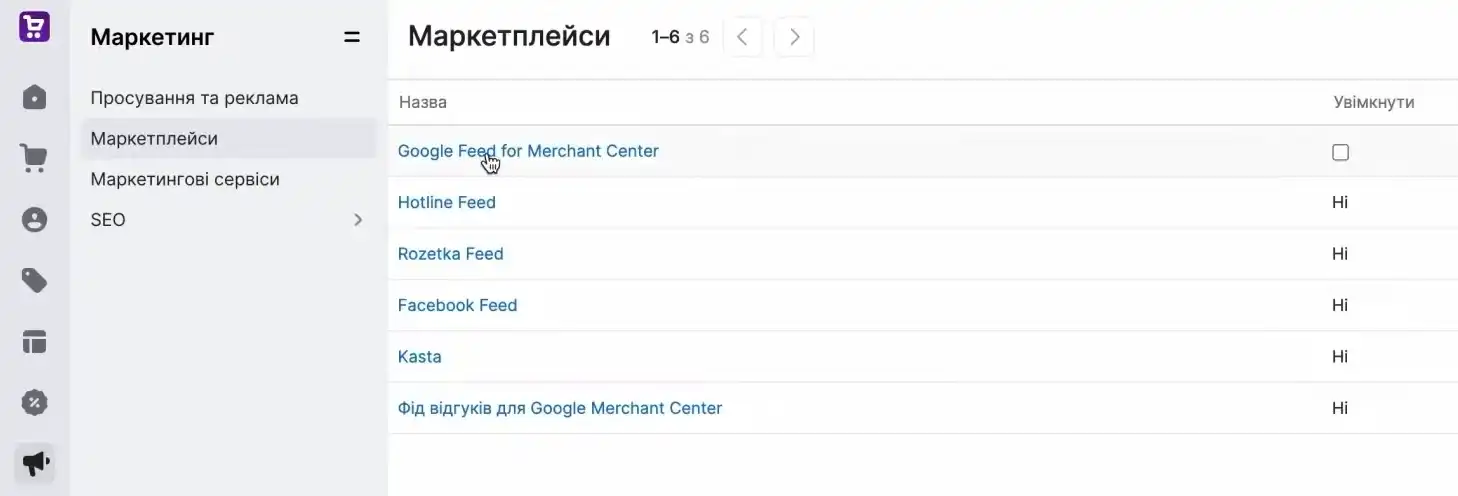
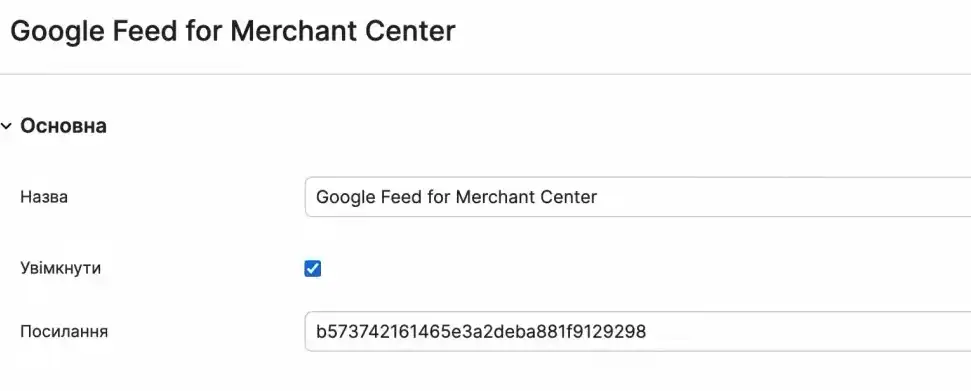
Log in to the website’s administrative panel. Open the “Marketing” → “Marketplaces” section, hover over Google Feed for Merchant Center, and check the “Enable” box.
All marketplaces in the Horoshop admin panel live on the same screen: Rozetka, Hotline, Prom, Facebook, Google. Don’t mix them up—the names are similar, but the fields inside are different.
After activation, additional fields specifically for the Google export will appear on each product page. They weren’t there before, so don’t be alarmed by the new blocks.
Fill In the Mandatory Product Fields
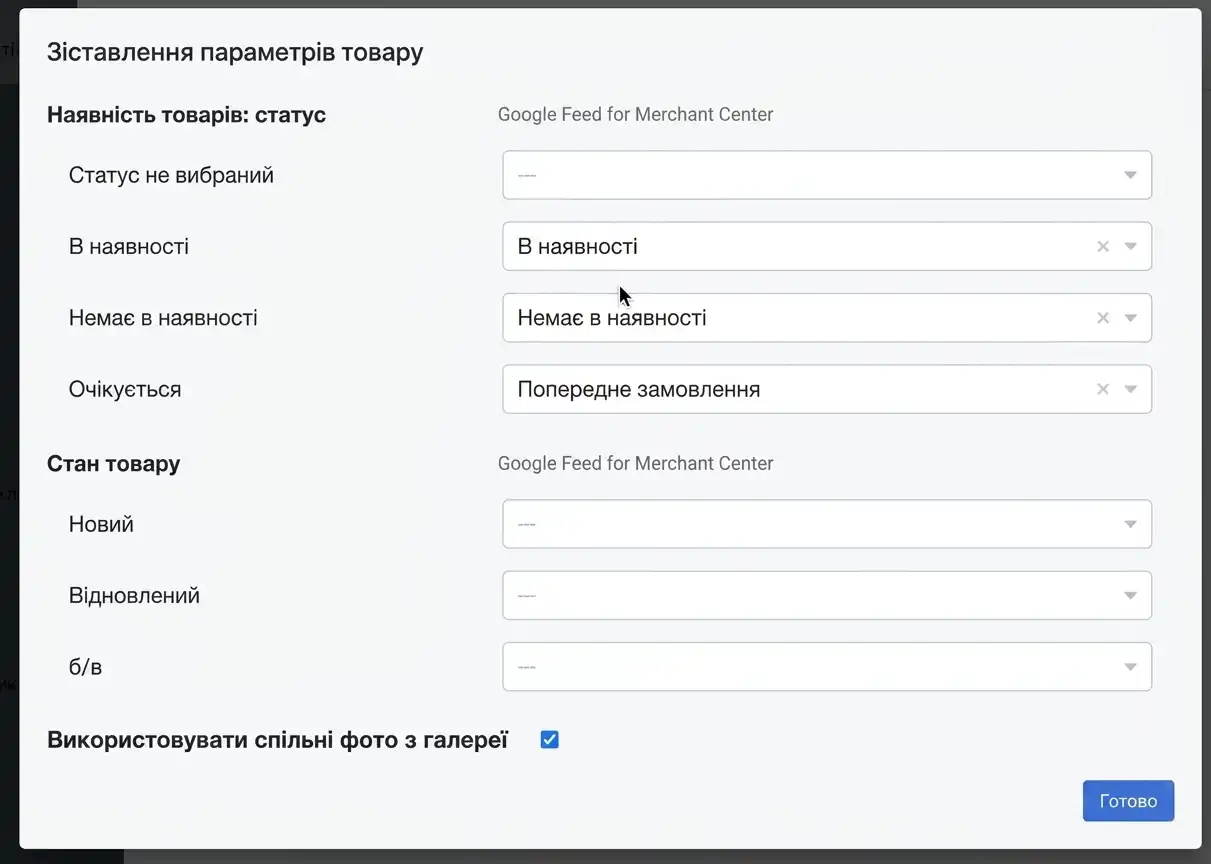
An item will only make it into the file if all necessary attributes are filled in:
- SKU.
- Alias (SEO-friendly page URL).
- Title.
- Price.
- Image.
- Description for product feeds—if left empty, the standard product description will be pulled.
- Condition: new, used, or refurbished.
- “Adult only”—mandatory for 18+ assortments.
- GTIN—the manufacturer’s barcode.
- Manufacturer Part Number (MPN).
GTIN and MPN are needed where these codes physically exist. Handmade items, paintings, and designer jewelry are exceptions; the attribute is not required for them.
A separate note on descriptions. Long texts are truncated in ads, which is why there is a separate description field for marketplaces. Enter a shortened version there manually or set up a generation rule: title + category + a couple of specifications.
Attention. Products with the setting “Show on storefront: No” will not be included in the feed. If you hide an item on the site, it will disappear from the ads as well.
Select the Products for Export
In the properties of each product, specify where it should go. Manually: “Products” → desired item → “Product Description” → “Basic Information” → “Export to marketplaces” block → Google Feed for Merchant Center checkbox. Uncheck the box, and the product will be removed from the export during the next generation.
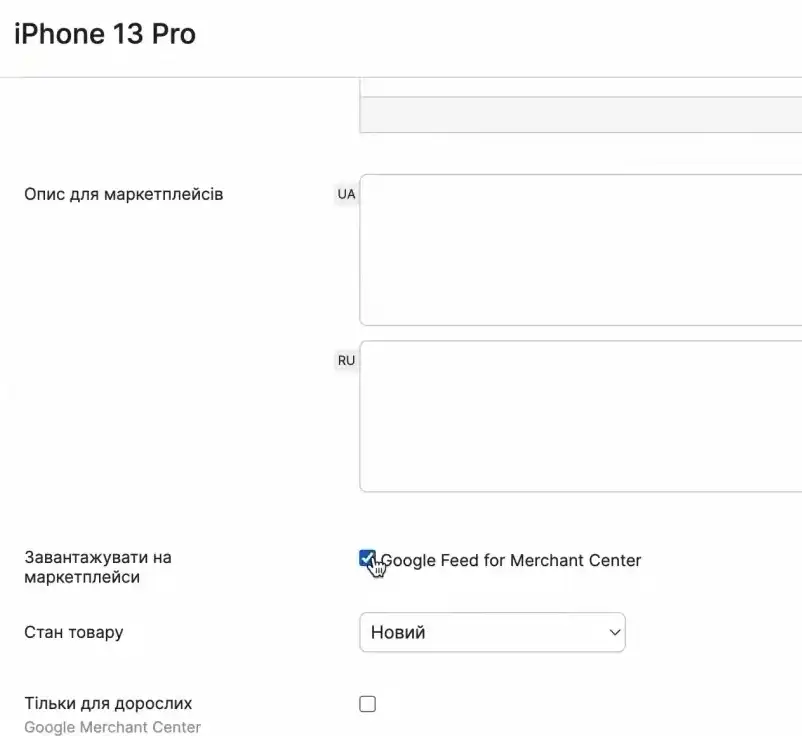
For a catalog of several thousand items, doing this is pointless. Use import:
- export the assortment to Excel via “Product Catalog” → “Export”;
- keep two columns—”SKU” and “Export to marketplaces”, delete the rest;
- set the value to Google Feed for Merchant Center for all the necessary SKUs;
- if the SKU is also going to Rozetka, list the feed names separated by a semicolon;
- upload the file back via “Product Catalog” → “Import”.
By the way, don’t export everything to the feed indiscriminately. Items that are “made to order,” lack photos, or have a price like “check with manager” are better excluded right away—they won’t pass moderation anyway, and the number of rejected rows affects account trust. Simply uncheck them in the admin panel.
A detailed guide with up-to-date screenshots is available in the Horoshop Help Center—the interface changes sometimes, so check against it.
Synchronize Category Names
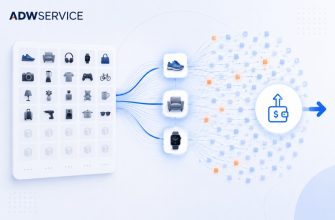
Google uses its own taxonomy. Your “Men’s Sneakers” category should get a match like Apparel & Accessories → Shoes—this attribute is called google_product_category.
Click the “Category Settings” button. On your first visit, activate synchronization so the platform can pull in Google’s current directory. After that, the process runs automatically every day.
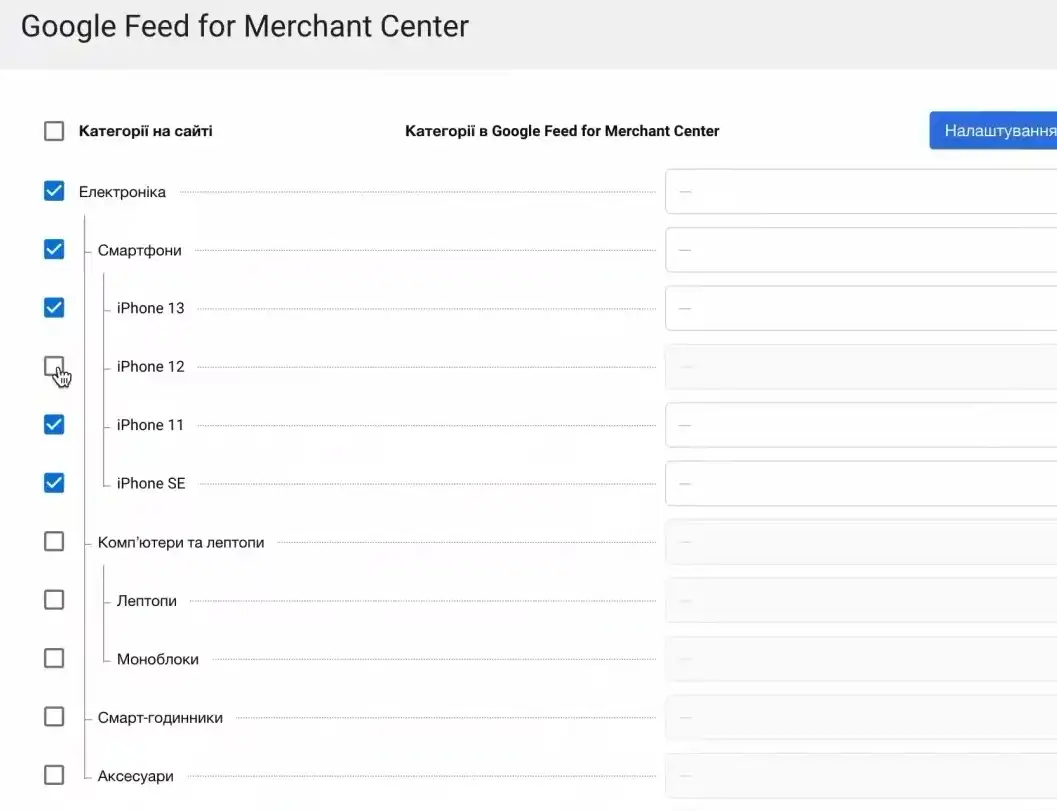
Next, map your website’s sections to the directory. If you can’t find a suitable one, leave the field empty: the product will still be included in the file, just without a Google category specified. An exact match lowers the cost per click because the ad is shown for more relevant queries.
Got a new category in your online store? Come back here and map it. Otherwise, products from the new section will silently drop out of the export.
Generate the XML and Get the Link
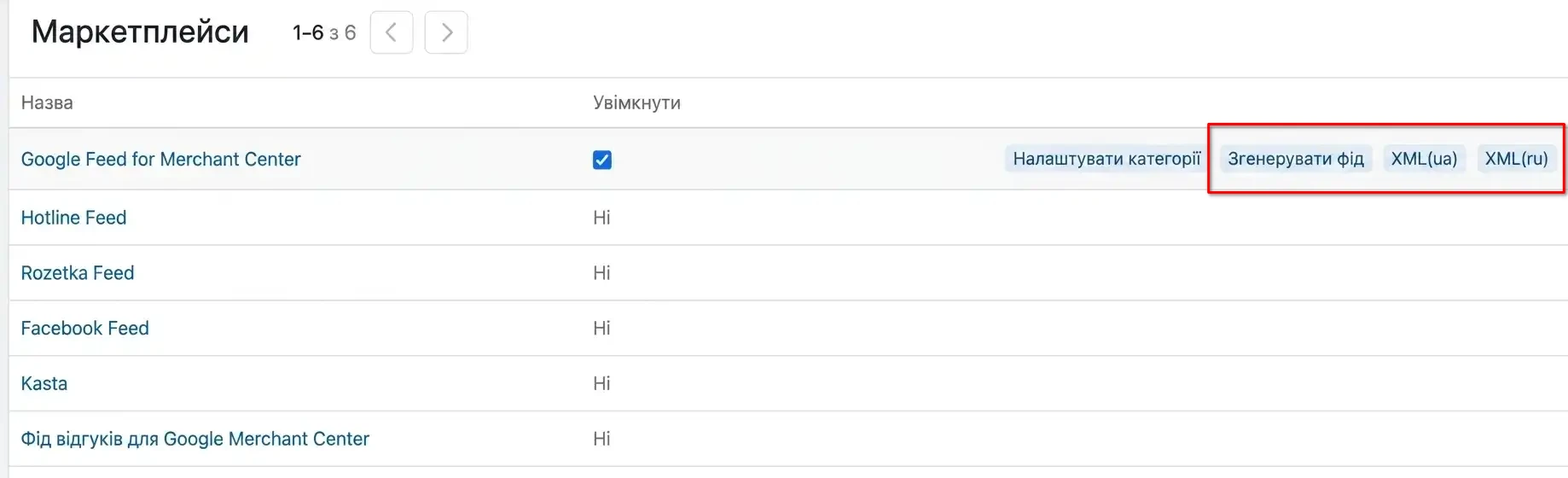
The file updates automatically every night. During initial setup or after bulk edits, click “Generate Feed”—the platform will rebuild the information immediately. The finished document is opened using the XML button. You can also export the Google Merchant Center feed in the Horoshop admin panel as a file to your computer—this is useful when you need to visually check the contents before sending them to the system.
This concludes the internal part: Google Shopping on Horoshop is then set up further within the ad account.
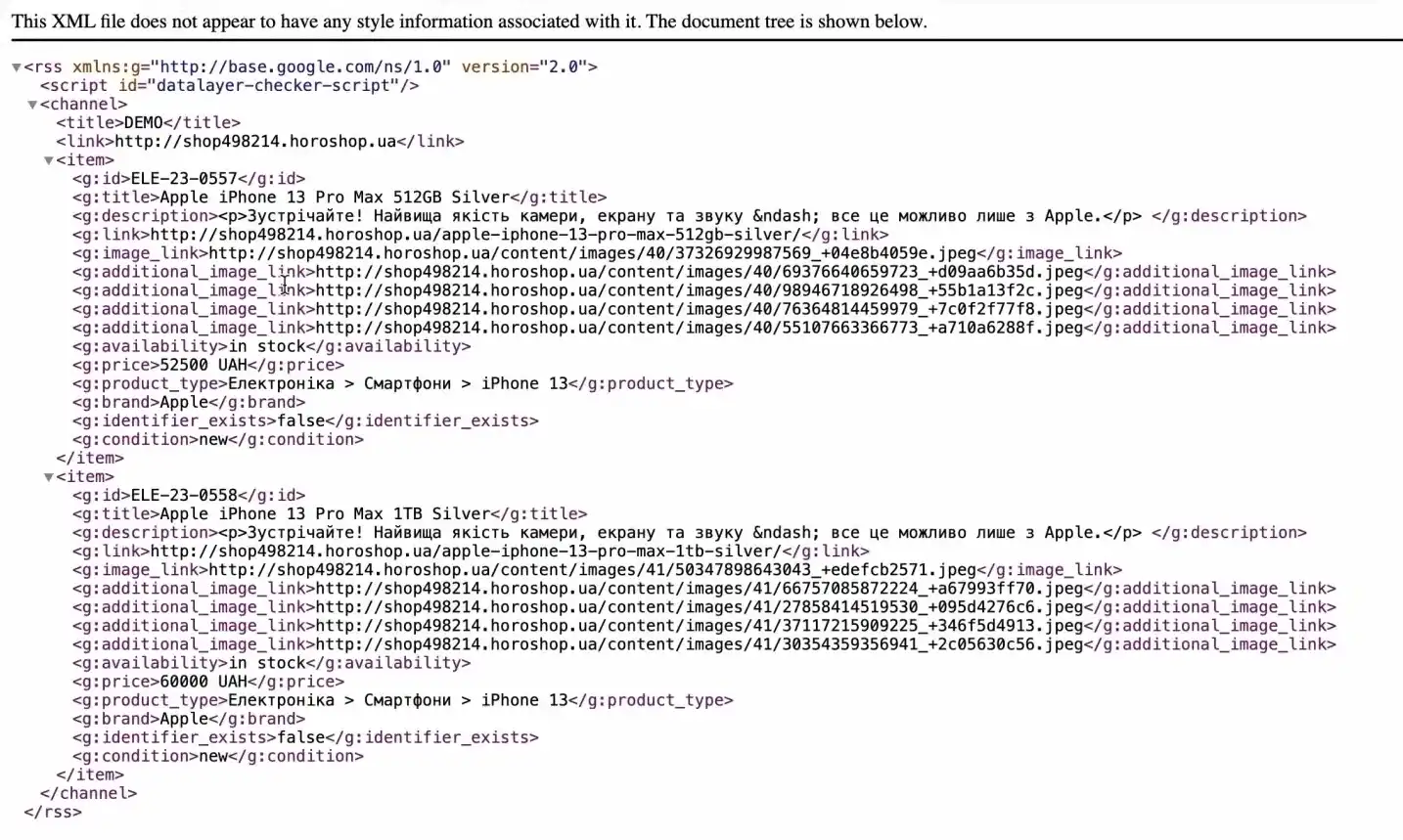
The link is generated once and looks like this: https://vashdomen.com/marketplace-integration/google-feed/alias?langId=2, where alias is a random 32-character string. A manager with the owner role can change it manually. To do this, go to the “Marketing” → “Marketplaces” section → feed → URL field → “Generate” → “Save”.
Attention. After changing the alias, the old link dies. If it has already been added to Merchant Center, your shopping ads will stop until the address is updated in the data source.
Got a 404 error during generation? The reason is almost always the same—some of the assortment lacks a specified category. Check the catalog and try again.
How to Set Up Two Language Versions of the Feed on Horoshop?
This is a relevant issue for the Ukrainian e-commerce market: stores operate in Ukrainian and often have a second language version. The system requires the feed language to match the landing page. If a Ukrainian ad leads to a page with a different interface language, it will be disapproved for mismatch.
Horoshop can generate a separate feed for each language. To do this:
- In the settings of the Google Feed for Merchant Center module, select the desired language.
- Generate the first feed (e.g., Ukrainian) and copy the URL.
- Repeat for the second version.
- In Merchant Center, add both feeds as separate data sources, specifying the respective language for each.
- Rename the sources clearly (e.g., “UA” and “RU”) so you don’t get confused.
Products from both feeds will end up in one account. The ad service will automatically show the user the version matching their interface language. At the same time, you can launch a single campaign for the entire assortment or separate them by language—the latter option provides more control over bids.
Create a Merchant Center Account and Verify Ownership
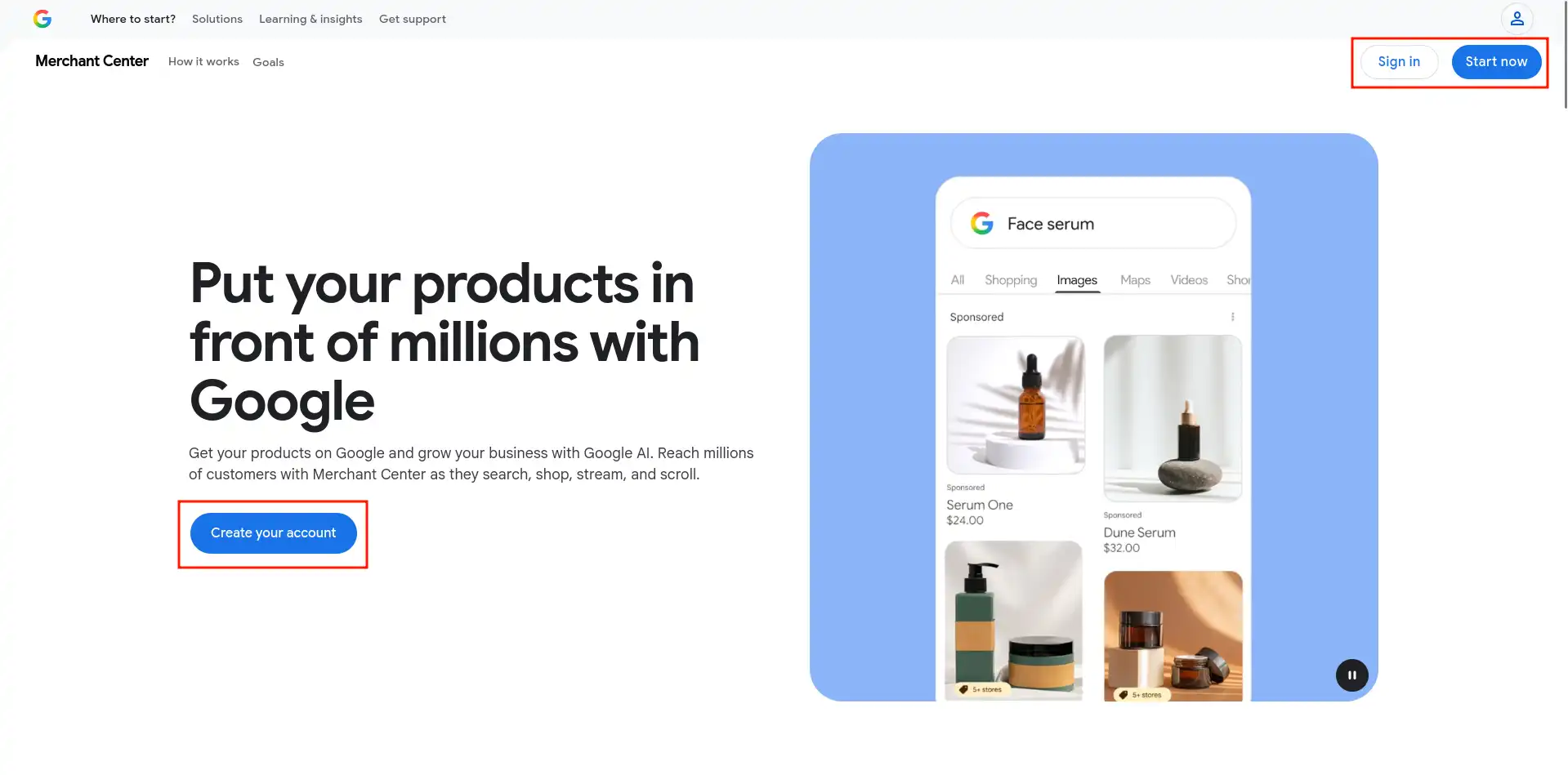
Register an account at merchant.google.com. Fill in the company information, region, currency (for Ukraine—hryvnia), shipping methods, and return policies. Shipping conditions are set twice: on the website and in the advertiser’s account, and they must match.
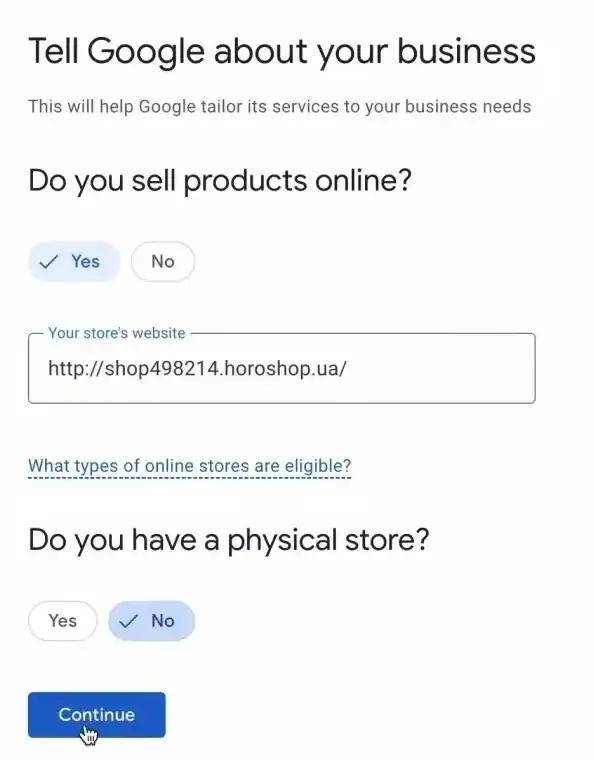
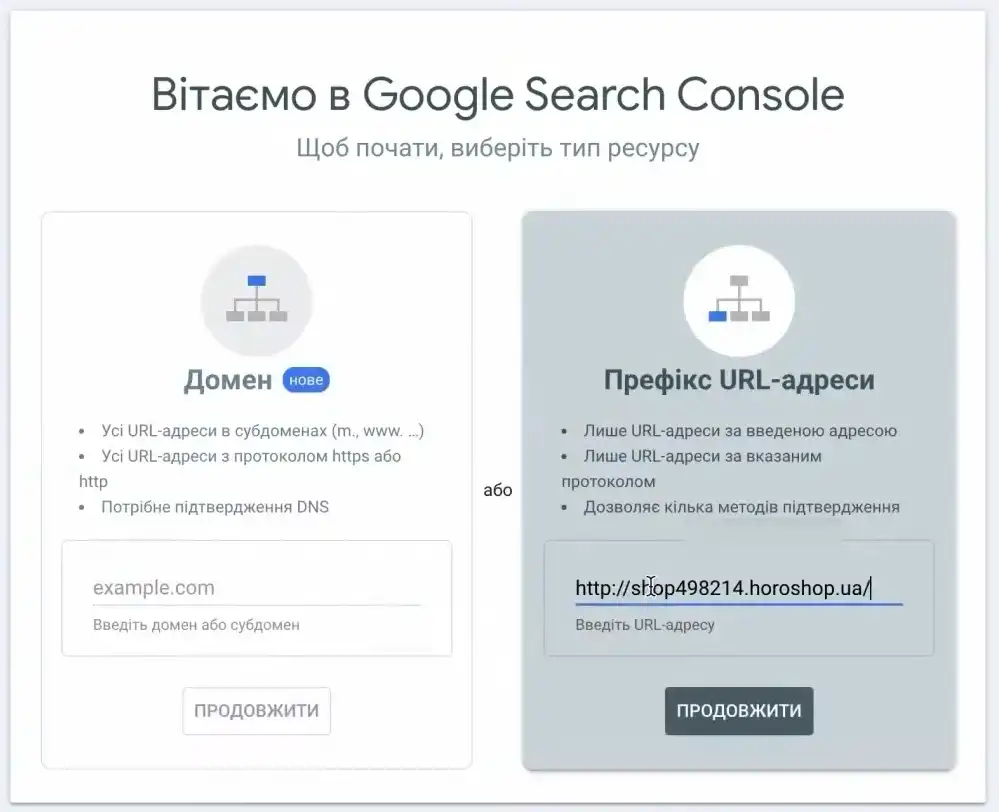
Verifying ownership and claiming the URL are two different actions, although they are performed back-to-back. Only one account can claim a single domain, so when transferring a store between contractors, the old ownership must be unverified.
Verification methods:
- HTML tag in the website’s header (the Horoshop admin panel has a field for third-party scripts);
- file uploaded to the root of the domain;
- via linked GA4 or Tag Manager.
The initial review takes 3 to 5 business days. Plan your launch with a buffer—you don’t want to be doing this the day before Black Friday.
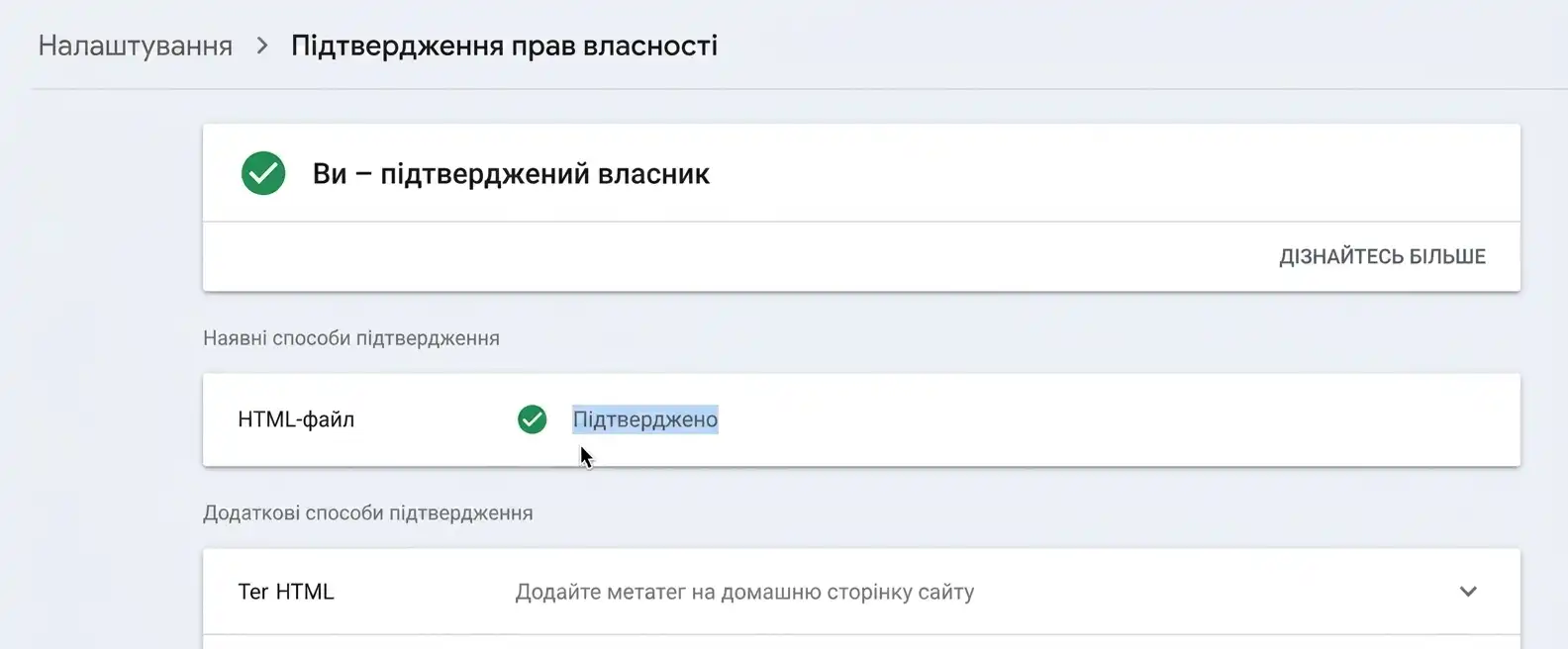
Another nuance. For several years, Google had been transitioning everyone to a new account version—Merchant Center Next. As of July 2026, the suffix was dropped, leaving only one version. Read old instructions with screenshots of the classic interface with this correction in mind: feeds are now called data sources, and target services are called marketing methods.
Add a Data Source
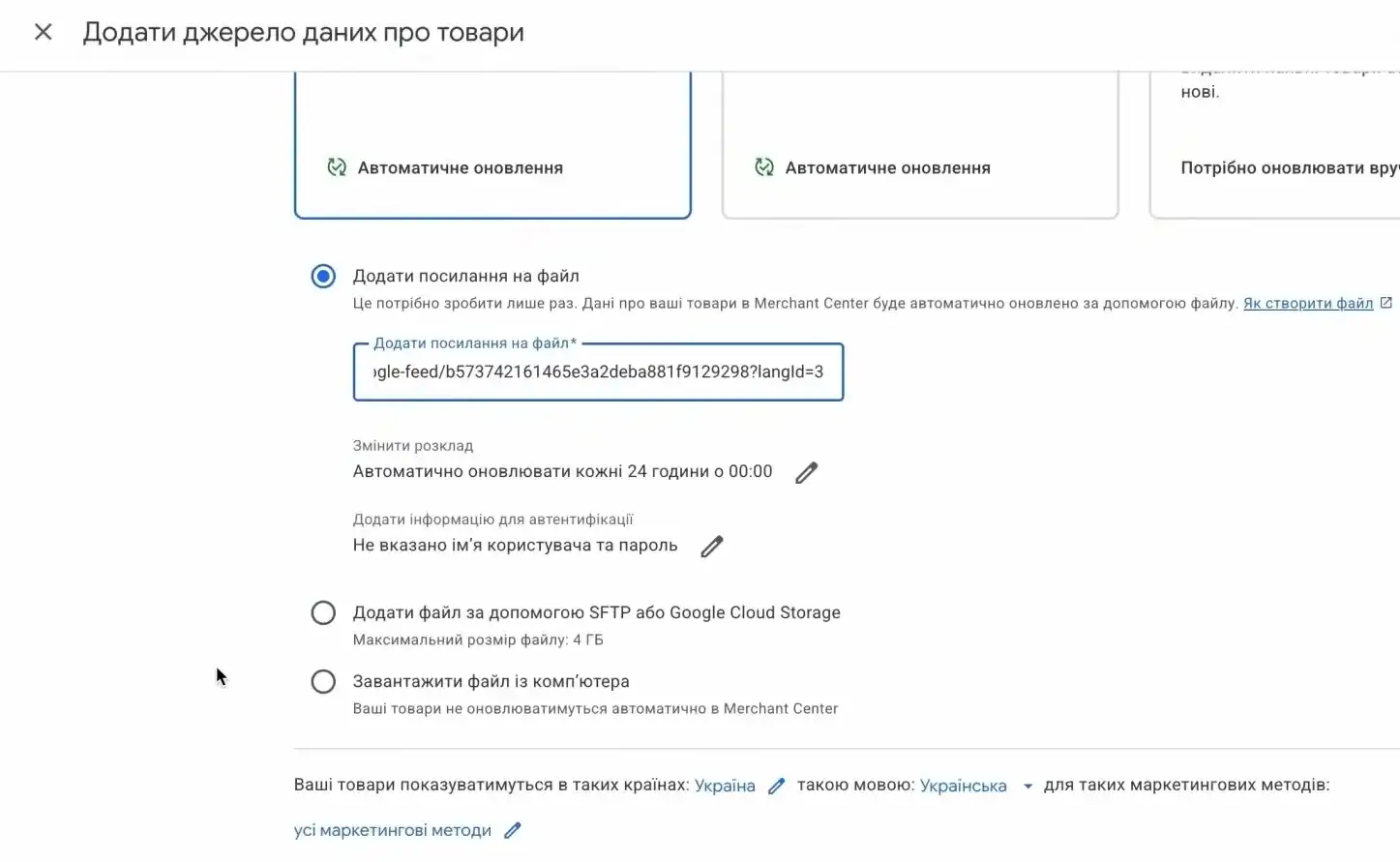
In your account, open “Products” → “Data sources” → “+”. Select the “Add via link” option, paste the feed address from the admin panel, specify the country of sale and language, and check the box for shopping ads.
Adjust the schedule. Horoshop rebuilds the file at night, so set the information fetch for the morning—7:00 or 8:00 AM Kyiv time. That way, the system will receive fresh prices and inventory, rather than yesterday’s.
Submit the Product Feed for Moderation
Once uploaded, the review begins. Initial statuses will appear in a few hours, and final ones within a couple of days.
Check the “Diagnostics” section: you can see how many items were approved, how many were disapproved, and for what reason. The “View history” button shows the dynamics—this is handy when you want to see if things got better or worse after making edits.
Typical reasons for disapproval:
- the price in the feed doesn’t match the website (most often due to a promotion that wasn’t pulled in time);
- the item is unavailable for order, but the file says “in stock”;
- the image is smaller than 500×500 pixels—since April 2026, the system sends warnings, and starting January 31, 2027, it will begin rejecting such images;
- missing GTIN for a known brand’s product;
- the title contains words like “SALE!!!” or “Best price”—promotional text in the title is prohibited;
- category policy violation: alcohol, medications, weapons, dietary supplements.
Don’t be intimidated by red numbers on the first day. A catalog of 5,000 items almost always gets 200–400 disapprovals at the start, and this is a normal working situation—it is fixed in a couple of iterations.
Launch Performance Max
If you passed moderation, it means setting up Google Shopping on Horoshop is in the homestretch. Link the accounts: in Merchant Center, find the linked accounts settings, send a request to Google Ads, and approve it there.
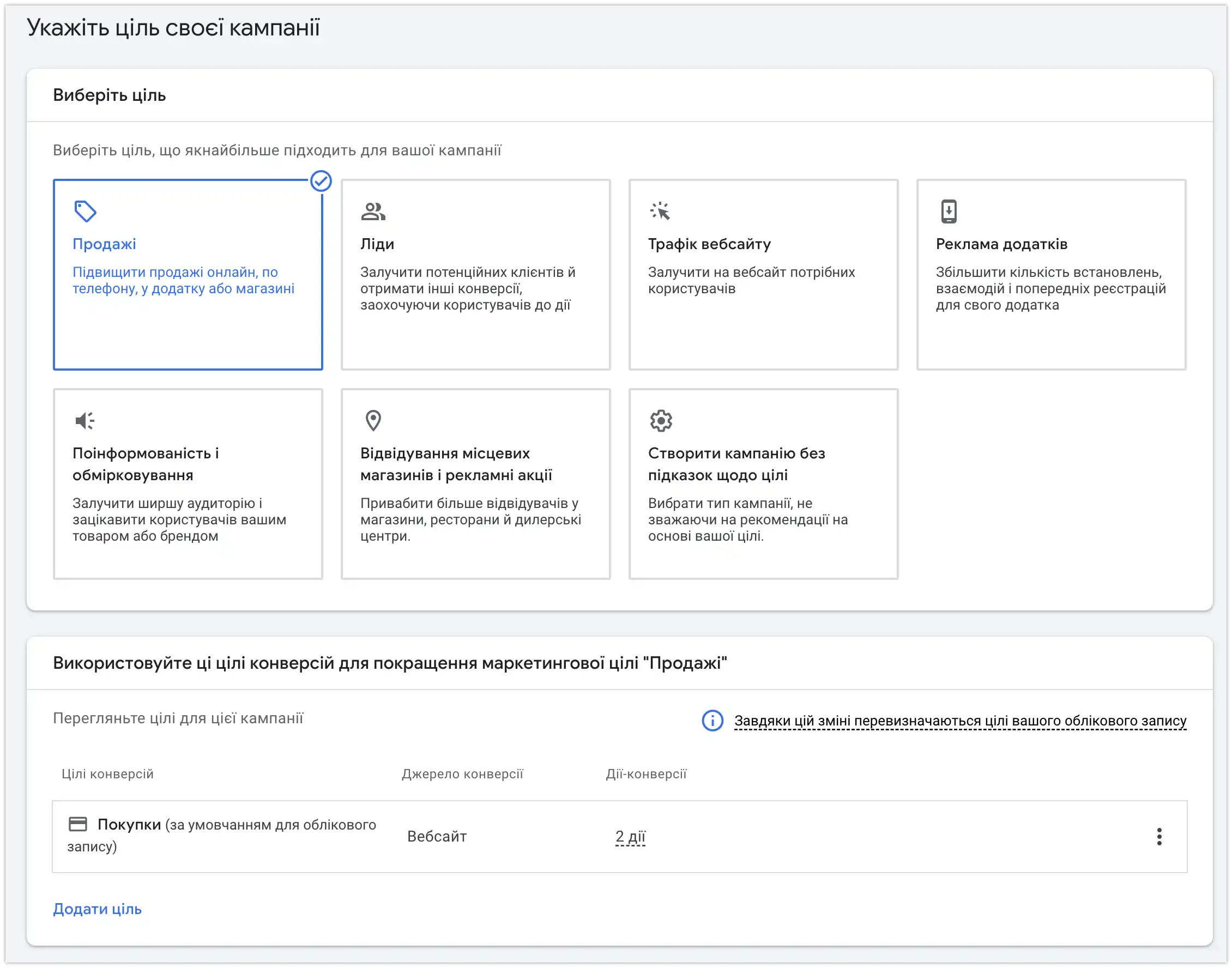
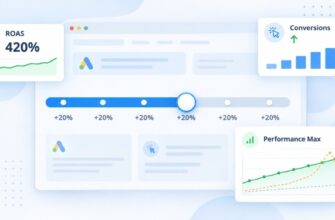
For shopping ads, Google is now promoting the Performance Max format. The campaign automatically distributes impressions across Search, the “Shopping” tab, YouTube, Gmail, and the Display Network. What is required of you:
- select a goal—”Sales”;
- connect the feed;
- set a daily budget (for a start in Ukraine, 300–500 UAH a day is realistic);
- choose a bidding strategy—”Maximize conversions” is fine for the first 2–4 weeks, later switch to Target ROAS.
Be sure to enable e-commerce in Analytics 4 and conversion tracking in Google Ads. Without purchase data, the Performance Max algorithm trains blind—the budget will be drained, and there will be no orders. On Horoshop, integration with GA4 is set up through the admin panel; there is no need to insert code anywhere.
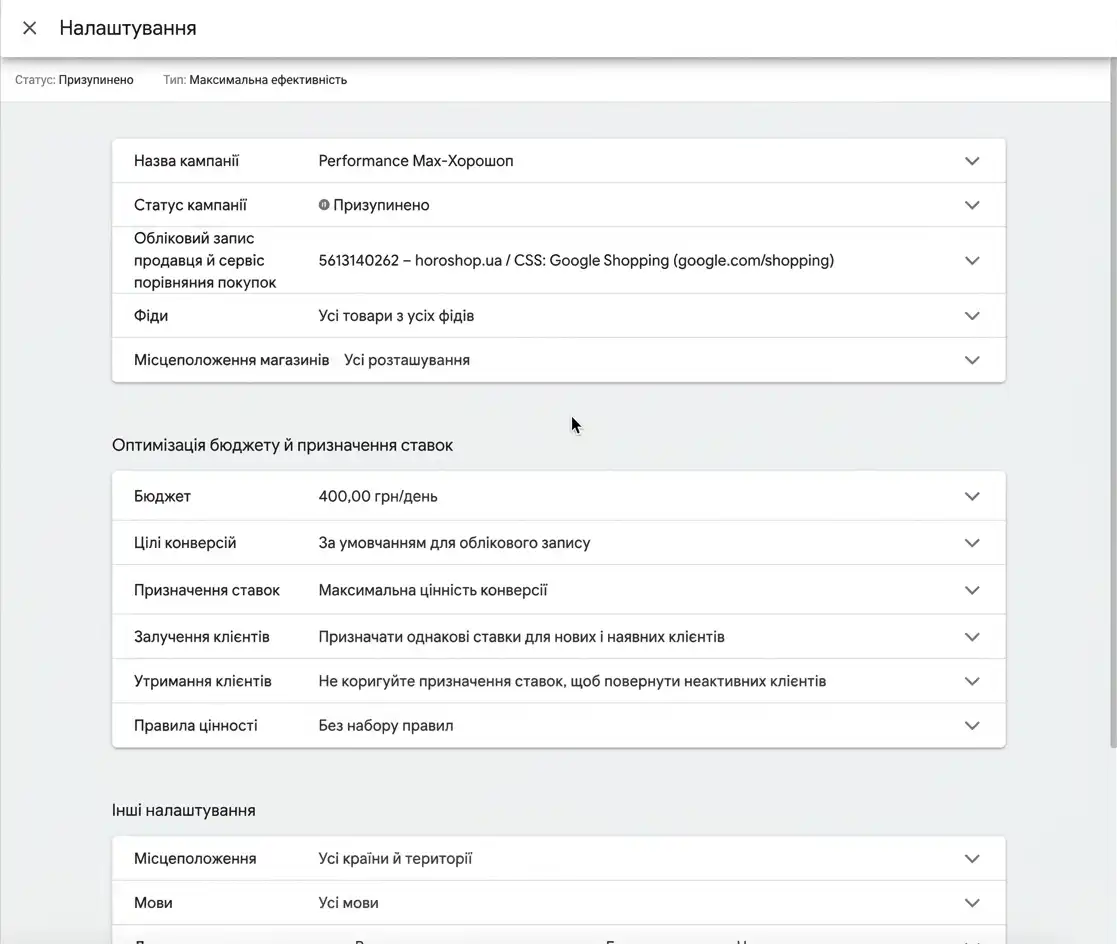
Do not touch the campaign for the first two weeks. The algorithm needs time to learn. Abrupt edits to the budget or bids reset the accumulated statistics.
How to Regenerate the Feed After a Price Change?
Store prices change constantly: promotions, exchange rates, supplier markups. Meanwhile, the service compares the price in the ad with the one on the website—if there is a discrepancy, the item is blocked.
The feed on Horoshop updates automatically on a schedule, and Merchant Center fetches it with the same frequency. But there are situations where you can’t wait—for example, you launched a sale and lowered prices on 200 items. Here is how to manually regenerate the feed after a price change on Horoshop:
- Open the feed module in the “Marketing” section.
- Click to regenerate—the file will be rebuilt with current field values.
- In Merchant Center, open the data source and run a forced upload.
How Much Does It Cost to Set Up Google Shopping for a Horoshop Website?
You can launch shopping ads yourself for free using our guide (not counting the Standard plan subscription fee and the time spent). But if you need our help, turnkey setup of Google Shopping ads for Horoshop with us will cost $1,200.
What clients actually pay for: catalog cleanup, dealing with disapprovals in diagnostics, description generation rules, and structuring campaigns based on margins. The mechanical part—activation in the admin panel and pasting the link—takes a specialist an hour.
It makes sense for an online store with a catalog of up to 500 items to do everything independently. However, with an assortment of 20,000 items and five language versions, it’s better to turn to a contractor—there’s just too much manual work.
Bonus! The average cost per click in shopping campaigns is lower than in classic search—the buyer has already seen the price and photo, so there are fewer accidental clicks. For niches with an order value of 1,000 UAH or more and a margin of 25–30%, the channel usually pays off in the very first month. But with cheap products, calculate carefully: with an order value of 150 hryvnias and a click at 3–4 hryvnias, it’s easy to go into the red.