Google Analytics 4 (GA4) is a tool that allows you to track user behavior on your website. However, if the data collection system has been set up incorrectly, this can lead to erroneous conclusions and wasted budget. That’s why regular Google Analytics 4 audits are necessary.
During the verification process, specialists examine the correctness of goal setting, the correctness of filter operation, report settings, and the reliability of the data collected.
Special attention is paid to technical aspects: the correct placement of tracking codes, the configuration of traffic sources, the accurate recording of important user actions, and sales tracking.
Why is it essential to order a GA4 audit?
When you know exactly where your customers come from and how they interact with your website, you can allocate your budget effectively and increase your profits. Regular audits of your Google Analytics 4 account ensure that you are working with real figures rather than a distorted picture of what is happening.
Interference often occurs in the data stream: bots inflate visits, company employees create unnecessary sessions when checking the site, and the same order may be counted several times.
Sometimes important events simply aren’t recorded due to technical errors. Without regularly checking your analytics system, you risk building your strategy on sand — after all, every marketing decision is based on these figures.
Imagine this situation: You see in your reports that your product page has a conversion rate of only 0.5%, while your competitors claim 2-3%. You hire a consultant, redesign the page, test new texts — and nothing changes.
The reason may be trivial: events added to the shopping cart are simply not tracked due to an error in the code. As a result, you waste time and money solving a non-existent problem. That’s why it’s better to order a Google Analytics 4 audit — so you’ll know exactly what’s causing the problems and won’t waste time and money.
When exactly do you need a Google Analytics 4 account audit?
- Event data does not match reality. For example, you know that 50 orders were placed during the day, but GA4 only shows 30. Or vice versa — the system records purchases that did not happen. Such discrepancies indicate problems with tracking settings.
- The metrics in GA4 differ significantly from other tools. Let’s say your CRM system shows 1,000 leads per month, while Google Analytics shows only 600. Or your Facebook ad account reports 200 clicks, while GA4 shows 120 clicks. With such discrepancies, you definitely need a GA4 account audit.
- There are many empty values and parameters in the reports. You have set up tracking for the traffic source or product category, but instead of data, you see “(not set)” or empty fields. This means that information is being lost somewhere along the way and you need to fix the data transfer logic.
- Technical services appear in traffic sources. When you see PayPal, Stripe, subdomains for placing orders, or other technical platforms among your traffic sources, this is a sign that there are problems. Such traffic distorts the real picture and makes it difficult to understand where real customers are coming from.
- Transitions from your own websites are tracked incorrectly. You have a main website and a blog on a subdomain, but transitions between them are displayed as external traffic. Or they are not recorded in reports at all. This makes it difficult to track the user’s entire path and correctly attribute conversions.
What does a Google Analytics 4 setup audit include?
If you decide to order a GA4 setup audit, our specialists will check the following:
Is the data being collected correctly?
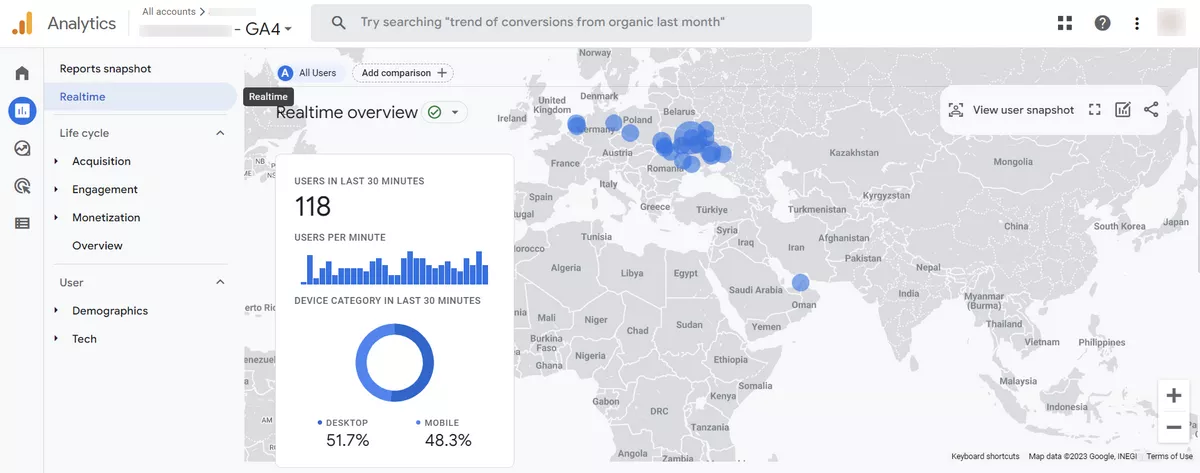
Start checking with the “Real-time” report in the GA4 interface. Current website visitors should be displayed here. Can’t see any active users, even though you know for sure that people are on the website right now? That means the counter is set up incorrectly. If the code is set up with errors or is missing on certain pages, you will get an incomplete picture.
First, determine how the meter will be installed. In different cases, the following may be used:
- Built-in CMS capabilities (WordPress, Joomla, OpenCart, etc.);
- Inserting code directly into the HTML markup of pages;
- Connection via Google Tag Manager.
Next, we check the code itself for errors. Common problems: the counter is connected to the wrong website template, conflict with other scripts, code blocked by security or caching plugins.
Are attributions configured?
Correct attribution in GA4 helps you understand:
- Which advertising channels bring in buyers and subscribers;
- At what stage of the funnel does each traffic source operate?
- Which brand interactions lead to target actions.
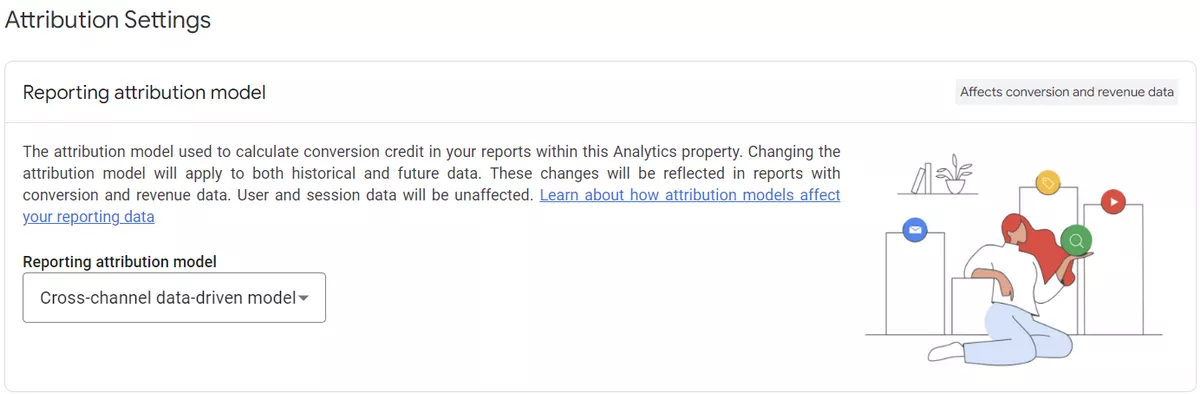
For example, the last-click model is suitable for an online store with impulse purchases. And for a B2B company with a long transaction cycle, it is better to use a linear model or position-based attribution to take into account the contribution of all touches.
During the audit, a specialist will examine your current attribution settings, analyze the traffic sources you use, and suggest the optimal model for your business. This will help you more accurately assess the effectiveness of each customer acquisition channel.
Is Google Signals enabled?
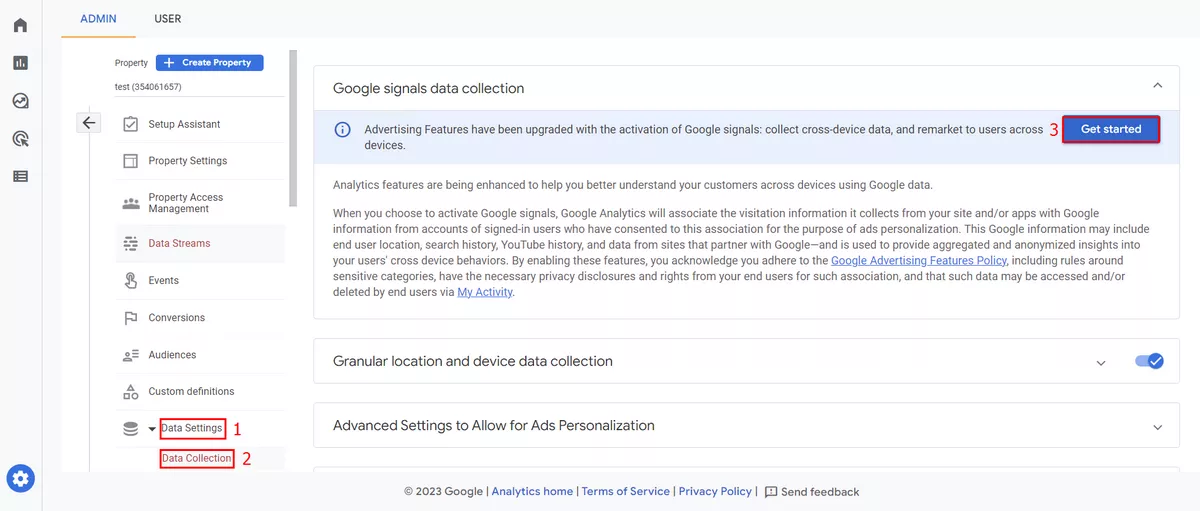
Google Signals connects a person’s actions on their smartphone, tablet, and computer into a single story, which helps you see the full picture of their interaction with your website. Without it, you would see three different users instead of one real buyer.
Imagine this scenario: a customer saw an ad on their phone in the subway in the morning, researched the product on their work computer in the afternoon, and placed an order from their tablet at home in the evening. Without Google Signals, this looks like three separate visits. With the feature enabled, it looks like a logical path of a single buyer from discovery to purchase.
To enable the feature, go to GA4 settings: Data Settings → Data Collection → Get Started button:
Is the 404 page tracked?
Many people forget to install a counter on this page, which causes them to lose valuable data about navigation issues and broken links. For example, a user clicks on a link from a search engine, lands on a non-existent page, and their path is lost to analytics. You won’t know where the visitor came from, what page they were looking for, or what they did next. The session simply disappears from the statistics.
Setting up analytics for the “Nothing found” page will help you find answers to important questions:
- Which pages do visitors most often fail to find?
- Where do links to non-existent sections come from?
- Do people leave after making a mistake, or do they continue searching for the information they need?
In GA4, you can set up a separate event to track such views, allowing you to monitor them in reports and quickly fix navigation issues. For example, if you see a spike in traffic to a non-existent product page from an email newsletter, it means that the link in the email is incorrect and needs to be fixed immediately.
Are internal transitions excluded from the statistics?
Let’s say you have a main website and a blog on a subdomain, or customers go to the payment page via PayPal and then return. In reports, these transitions appear as new traffic sources, although in fact it is the same user continuing their journey through your ecosystem.
Such technical transitions seriously distort statistics. Instead of understanding where customers actually come from, you see PayPal or your own subdomain at the top of your traffic sources. Conversion attribution breaks down — the system attributes sales to the payment system rather than to the advertising campaign that brought the buyer.
The solution is simple—add unwanted sources to the list of exceptions. You can find this setting by following the path: “Administrator Resource” → “Settings” → “Data Streams” → “Web Stream Details” → “Configure Tag Settings” → “Show All” → “List of Unwanted Redirects.”
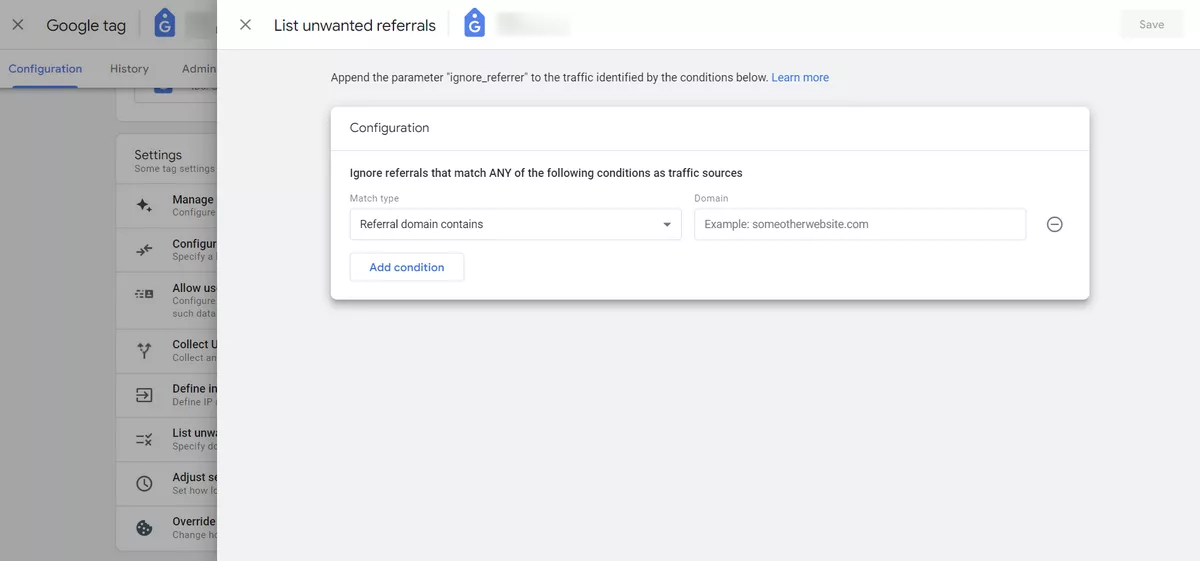
Add payment system domains, your subdomains, partner sites for authorization — everything that is part of a single user journey but is technically located on other domains.
Is internal traffic filtered?
Every day, you and your colleagues visit the company website dozens of times: to check for updates, test new features, or show something to a client. Google Analytics records each of these visits in the same way as visits from real customers.
The result is predictable: strange patterns appear in the reports. The internal documentation page suddenly becomes the most popular on the site. The bounce rate drops sharply because employees know where to click. The average time spent on the site increases — developers keep tabs open for hours.
This has a particularly strong impact on small websites. If you have 100 visitors per day and a team of 10 people each makes 5 visits, that’s already a third of your total traffic!
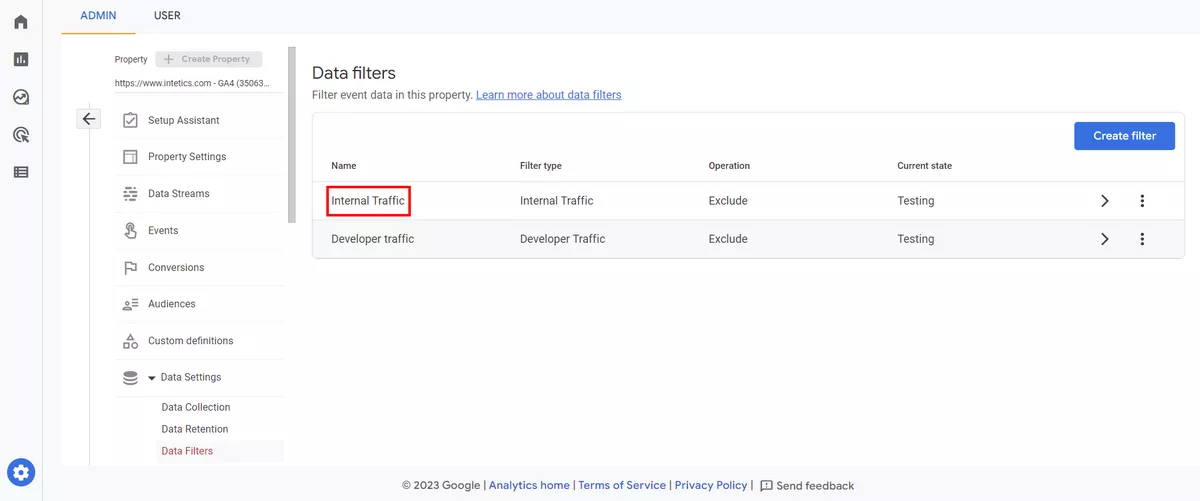
To avoid this, you can set up filters in GA4 based on the IP addresses of your office and remote employees. Developers, copywriters, and SEO specialists are usually added to the exclusion list. You can go further and create a special parameter in your employees’ browsers that will mark their traffic as internal.
Are events for eCommerce configured correctly?
It is extremely important for online stores to track the entire customer journey—from the first view of the product to the payment for the order. In GA4, the logic of event names has changed compared to Universal Analytics, and now they have become clearer.
Instead of abstract “impressions,” “view_item_list” is now used—it is immediately clear that the user is viewing a list of products. “Click_item” has become “select_item”—the user selects a specific product. These changes make reports more readable and logical.
During the audit, the specialist must verify the accuracy of the recording of the main actions of buyers:
- Views of product and category cards;
- Adding to and removing from the shopping cart;
- The start of the order process and each stage thereof;
- Successful transactions with correct amounts;
- Returns and order cancellations.
To check how event tracking is currently working, go to the “Monetization” section in your GA4 account. All important metrics should be displayed there: revenue by category, popular products, shopping cart conversion. If you see zeros or clearly underestimated figures, it means that some events are not being tracked or are being transmitted with errors.
A common problem: developers have configured basic events but forgotten to transfer product parameters. As a result, you know that a purchase worth 5,000 hryvnia was made, but you cannot see which products were purchased. Or vice versa — products are transferred, but without prices and quantities, making it impossible to analyze the average check and margin.
Are custom reports enabled?
Standard reports in GA4 are not always sufficient for in-depth analysis of the situation. Therefore, it is necessary to set up custom reports tailored to specific tasks. For this purpose, GA4 has a special section called “Explore.”

Which reports should be configured first:
- Breakdown by advertising campaigns. Allows you to collect advertising costs, number of clicks, ad impressions, revenue generated, and number of orders in one place. A breakdown by each campaign will show which ads are working and which are eating up your budget without results.
- Product range analysis. Allows you to create reports with three levels of detail: categories, specific products, and items. This allows you to see which categories generate the most revenue, which products are slow-moving, and where pricing needs to be adjusted.
- Internal search monitoring. Helps track what people are searching for on the website. If hundreds of people are searching for “wireless headphones” and they are not available in the product range, this is a clear signal to expand the catalog. Or if people are constantly searching for “delivery,” it means that the information about it is not clearly visible.
- Transaction details. This is a complete list of orders with amounts, shipping costs, and discounts applied. It helps you find anomalies: orders with zero amounts, suspiciously large discounts, and problems with shipping calculations.
- The effectiveness of acquisition channels. This is not just the number of clicks, but the entire funnel for each source. How many purchases did the channel bring in, what is the average check, how much does one attracted user spend on average. For example, social networks can generate a lot of traffic with a low average check, while email newsletters can generate few clicks but with a high conversion rate.
Correctness of traffic channel fixation
GA4 has changed its approach to working with traffic sources—there are no longer the usual filters for quickly correcting errors in channel names. This creates new challenges in analytics.
A common issue: the system recognizes the same source as different channels. For example, visits from Facebook can end up in three different places: “Facebook,” “facebook,” and “fb.com.” For analytics, this looks like three independent sources, although in reality it is one social network. As a result, you cannot accurately assess the effectiveness of advertising on Facebook—the data is spread across different reports.
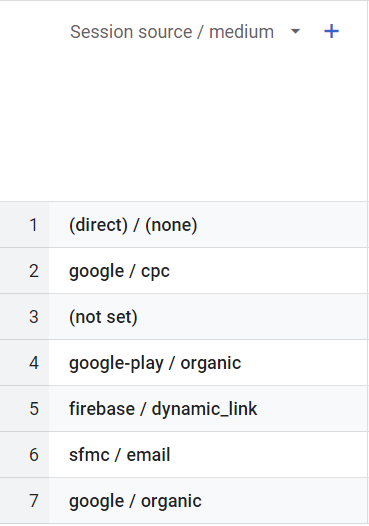
More examples of common mistakes:
- Email newsletters end up in Direct instead of Email due to the absence of UTM tags;
- Transitions from messengers are defined as Referral, not Social;
- Paid traffic from social networks is counted as organic social traffic;
- One advertising office creates dozens of variations of the source name due to typos.
During the audit, the analyst will examine all sources in your reports, find duplicates, and advise on how to standardize names. Usually, the solution is to create uniform UTM tagging rules for the entire team and those who run ads. Sometimes it is necessary to configure additional channel grouping rules directly in the GA4 interface.
Are connections to other instruments configured correctly?
Full-fledged web analytics is impossible without connecting GA4 to other tools. Each integration solves specific tasks and provides additional opportunities for analysis. The following are particularly important:
Integration with Google Ads
Connecting your advertising account to analytics is the first thing you need to do after installing GA4. Without this integration, you only see half the picture: you know how much you spent on advertising, but you don’t know what you got in return.
- After setting up synchronization, new possibilities appear:
- GA4 shows not only clicks, but also the further behavior of visitors from ads;
- Conversions from analytics are imported into Google Ads to optimize bids.
- You can create remarketing audiences based on website behavior;
- End-to-end analytics from ad view to purchase appears.
Export to BigQuery
The standard GA4 storage only keeps data for 14 months. For many businesses, this is not enough — they need to compare seasons, analyze long-term trends, and store history for tax purposes.
BigQuery solves this problem and offers additional benefits:
- Unlimited storage of the entire interaction history;
- The ability to integrate GA4 data with your CRM, warehouse system, and call tracking;
- SQL queries for more complex analytics;
- Create your own dashboards in Looker Studio with any data slices.
Connecting Search Console
This integration reveals organic search traffic. Without it, you only know that a person came from Google search results, but you don’t know what exactly they were looking for.
Search Console in conjunction with GA4 shows:
- Specific search queries that bring people to the site;
- The website’s position for these queries;
- CTR of snippets in search results;
- Which pages are ranked for which keywords.
Practical use: you can see that for the query “buy a coffee machine,” the website ranks third and has good traffic, while for “delonghi coffee machine,” it ranks 15th but has a high conversion rate. This is a direct guide to action for an SEO specialist.