A Shopping campaign is bringing in orders, ROAS is holding at 500–600%, and the daily 1,500 UAH budget is being fully spent. The logical next step is to invest more. But this is where many online store owners get an unpleasant surprise: investments doubled, but sales only grew by 20–30%. The money went to clicks, and profitability tanked.
The problem is that scaling Google Shopping isn’t just about changing the number in the “daily budget” field. The system looks for buyers based on a given strategy, and a sudden injection of cash without changing the structure, feed, and goals will force it to buy more expensive and less targeted auctions. You’ve already grabbed the most “delicious” queries—additional traffic is always more expensive.
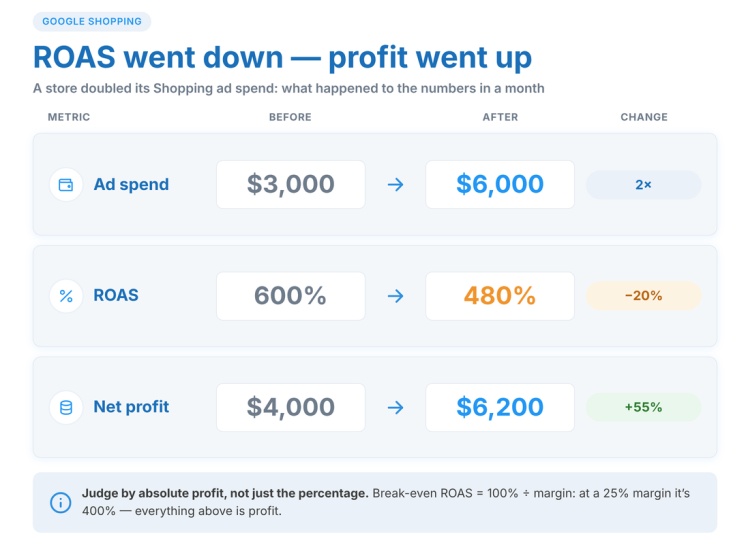
What it actually means to scale a Google Shopping campaign: increasing sales volume and revenue while maintaining an acceptable profit from every hryvnia spent. Sometimes ROAS drops a bit in the process—this is normal if absolute profit is growing. Let’s say, with a monthly spend of 30,000 UAH, a store made 40,000 UAH in net profit. At 60,000 UAH, ROAS fell from 600% to 480%, but net profit grew to 62,000 UAH. This is a successful result, even though it looks like a failure according to one metric.
In this article, we’ll break down the signs that you’re ready for growth, the reasons for a ROAS drop when increasing investments, safe increments for raising limits, working with tROAS, bestsellers, and “zombie” items, and controlling profitability.
When is a Shopping campaign ready to scale?
You should only grow what is already working stably. It sounds obvious, but in practice, investments are often increased emotionally: “We had 8 orders yesterday, let’s double it.” One successful day doesn’t prove anything—you need data for at least 2–4 weeks.
Before you increase your Google Shopping budget, make sure that:
- Conversion tracking is working correctly. Value is passed to the account with the actual order amount, not a fixed value. Otherwise, the strategy will optimize blindly.
- At least 30–50 conversions have been accumulated over the last month. Anything less, and the system has nothing to learn from, making smart strategies behave unpredictably.
- ROI stays within the target range for at least two consecutive weeks without wild swings.
- The daily limit is fully spent, and the “Status” column says “Limited by budget.” If not, the problem isn’t money, but bids, the feed, or demand.
- Impression share is below 60–70%—there is room to grow.
If at least two of these points aren’t met, stabilize performance first, or else you’ll just be scaling chaos.
Attention: the “Limited by budget” status combined with a high impression share (85–90%) is a trap. You are already visible almost everywhere people search for you, and anything further will go into expensive auctions with a low probability of purchase. Here, you shouldn’t pour in more money, but rather expand your assortment or tap into fresh search queries.
Another sign of readiness is clear unit economics: you know the margin by category and the break-even point, below which advertising runs at a loss. Without this number, it’s impossible to tell a successful scaling of Shopping ads apart from a simple waste of money. The minimum is easy to calculate: divide 100% by the margin percentage in the price. With a 25% margin, the break-even level is 400%. Anything above that is profit.
Why does ROAS drop when you increase your Google Shopping budget?
The most common reason is diminishing returns. At 1,000 UAH per day, the algorithm picks the cheapest and hottest auctions: a person entered the exact model name, your price is competitive, and the product is in stock. At 3,000 UAH, there aren’t enough of these queries anymore, and the system buys worse traffic: broader phrases, people with lower intent, and expensive positions in search results. Every subsequent thousand hryvnias brings in less revenue than the previous one.
There are also other, less obvious reasons:
- Learning phase reset. A sharp change in limit or goal restarts the learning process: usually, everything is tested anew for 1–2 weeks, and metrics fluctuate.
- Overheated bestsellers. Additional money goes to the same 10–15% of the inventory that was already selling. Demand for them is limited, bids go up, and returns go down.
- Higher CPCs due to competing with yourself. Multiple campaigns (or Performance Max and Standard Shopping) with overlapping inventory clash in the same auction.
- A narrow product range. 30–50 SKUs quickly hit a demand ceiling, and money won’t just create new buyers.
- A weak feed. While funds are low, flaws in titles and attributes are unnoticeable. With larger amounts, they become expensive due to irrelevant traffic.
The main principle of growth without losing returns is to increase volume not just with money, but with additional traffic sources: categories, query types, and regions. Add money to an already expanded structure.
Important: ROAS is not the only benchmark. If, alongside increased investment, the metric dropped from 700% to 550%, but net profit grew, then it worked. Look at absolute numbers, not just the percentage.
How much can you increase a Shopping campaign budget at once?
A safe increment is 15–20% of the current daily limit, no more than once every 3–5 days for smart strategies. This isn’t dogma from a help center article, but a practical observation: with this increment, the algorithm usually doesn’t go into a full learning phase, and metrics don’t plummet.
Why this much? Smart strategies (tROAS, Maximize conversion value) calculate bids based on historical data. They perceive a small change as a natural fluctuation, but a doubling as a new launch, and they start testing all over again.
Let’s look at the numbers:
Days | Daily amount, UAH |
|---|---|
1–5 | 1,000 |
6–10 | 1,200 |
11–15 | 1,440 |
16–20 | 1,730 |
21–25 | 2,070 |
26–30 | 2,490 |
In a month, the spend grew 2.5 times without a single sudden jump. If at the next step, ROI dropped by more than 15–20% and didn’t recover in 4–5 days—stop: the ceiling of the current structure has been reached.
With manual bidding, the rule is more lenient: you can add 30–50% since there’s no learning phase. But keep an eye on CPC—the system will start showing your product cards in more expensive positions.
Sometimes, there is no time to wait. Right before Black Friday or during peak season (air conditioners in June, heaters in October), demand surges by 200–300%, and smooth scaling of Google Shopping by 20% won’t keep up with the market. In that case:
- Raise the limit sharply, but in advance—7–10 days before the peak, so the learning phase finishes before the start.
- Use seasonality adjustments (Tools & Settings → Bidding strategies → Advanced controls). They warn the system about a temporary spike in conversion rates, so it doesn’t treat it as an anomaly.
- Don’t touch the goal when raising the budget: one change at a time.
Tip: keep a changelog—date, what you changed, amount before and after, ROAS after 5 days. Without it, in a month you won’t remember which step crashed your metrics.
Optimal bidding strategy when scaling Google Shopping
Target ROAS (tROAS) is the main lever that helps scale ad revenue in Google Shopping. It tells the algorithm: “Bring in as much value as possible, but on average, keep the return no lower than X%.” The higher the goal, the more cautious the bids and the less traffic is bought. The lower the goal, the more aggressive it gets.
Hence a simple but non-obvious rule: to increase volume, lower tROAS, don’t raise it. Many do the opposite—they add money and simultaneously tighten the goal, hoping for “both volume and efficiency.” Under these conditions, the algorithm won’t spend the limit: reach drops, and the campaign stalls.
How to lower it correctly:
- Increment — 10–15% of the current value. If it was 600% → set 520–540%, not 400%.
- Pause between changes — at least a week. Give the algorithm time to process the updated goal.
- Lower limit — break-even level plus a 20–30% buffer. With a 30% margin, break-even is 333%, so dropping below 400–430% is dangerous.
The reverse situation: the campaign spends everything, ROAS is 900% with a goal of 500%. The algorithm is overdelivering—which means it can buy more. Raise the budget, but leave the goal as is. Or lower it slightly if budget isn’t a constraint.
Important: do not set a tROAS if you have fewer than 30 conversions per month—there won’t be enough data, and the system will act chaotically. At launch, select “Maximize conversion value” without a target value or “Maximize clicks” with a bid limit, accumulate statistics, and then switch.
How to scale profitable product categories in Google Shopping?
One campaign for your entire inventory is the worst structure for growth. The algorithm averages things out: spend goes to product cards with high CTR, not high margins. To scale sales through Google Shopping in a controlled way, divide your assortment into groups with different goals and budgets.
A workable segmentation scheme is based on the product’s role in the business, with a separate campaign for each group:
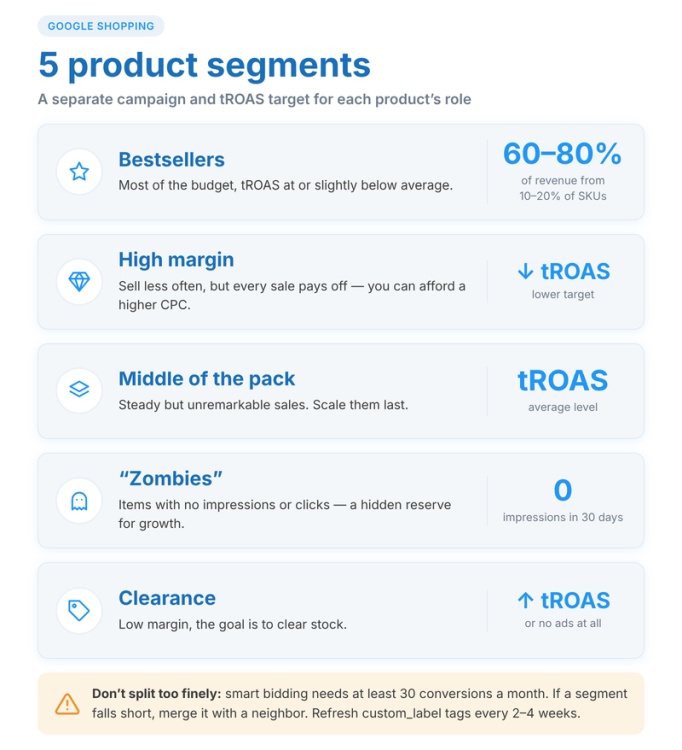
- Bestsellers. 10–20% of SKUs generating 60–80% of revenue. The bulk of the budget, with a tROAS at or slightly below average. This is where the main volume lies.
- High-margin products. Sell less often, but every sale is profitable. Lower tROAS—you can afford to pay more per click.
- Mid-performers. Stable, but sales aren’t outstanding. Average tROAS.
- “Zombie” products. Items with no impressions or clicks for 30 days. More on them in the next section.
- Clearance and markdowns. Low margin; the goal is to clear the warehouse. High tROAS or exclude them from advertising entirely.
Technically, segmentation is done using the custom_label attribute. Assign a label to each SKU (e.g., custom_label_0 = bestseller / margin_high / regular / zombie / clearance), and set up a filter for it in your campaigns. Update the labels every 2–4 weeks: yesterday’s mid-performer could become today’s bestseller.
Let’s say we have a sports nutrition store: 400 SKUs, 35 of which drive 70% of sales—proteins and creatine from well-known brands. We pull them out separately: 2,500 UAH per day. Vitamins and accessories with a 45% margin go into a second campaign: 800 UAH per day and a 400% tROAS instead of an overall 550%. The rest goes into a third, for 600 UAH. In total, it’s the same amount that used to go into one general campaign, but now every hryvnia works toward its own goal.
Next, don’t scale everything at once; do it segment by segment. Bestsellers first—they respond fastest to growth. Then high-margin items. Touch mid-performers last.
Attention: do not fragment too finely. A campaign with 5 conversions a month won’t learn on any strategy—smart bidding needs a minimum of 30. If a segment falls short, merge it with an adjacent one.
A final note on bestsellers: they are easy to “overheat.” Bids on them will keep rising until demand is exhausted. Monitor your impression share—when it crosses 80–85%, further investments will go into expensive auctions with minimal return. It’s time to switch to other segments.
What to do with products that get no impressions?
In large catalogs, up to half of SKUs get no impressions at all. The system picks product cards with accumulated signals—clicks, sales—and rotates them over and over, while the rest sits idle. Such items are called “zombies”: they are in the feed, approved in Merchant Center, but for the algorithm, it’s as if they don’t exist.
For scaling, this is a hidden reserve. Instead of paying extra for increasingly expensive clicks on bestsellers, you can grow volume using the inventory you aren’t currently paying for at all.
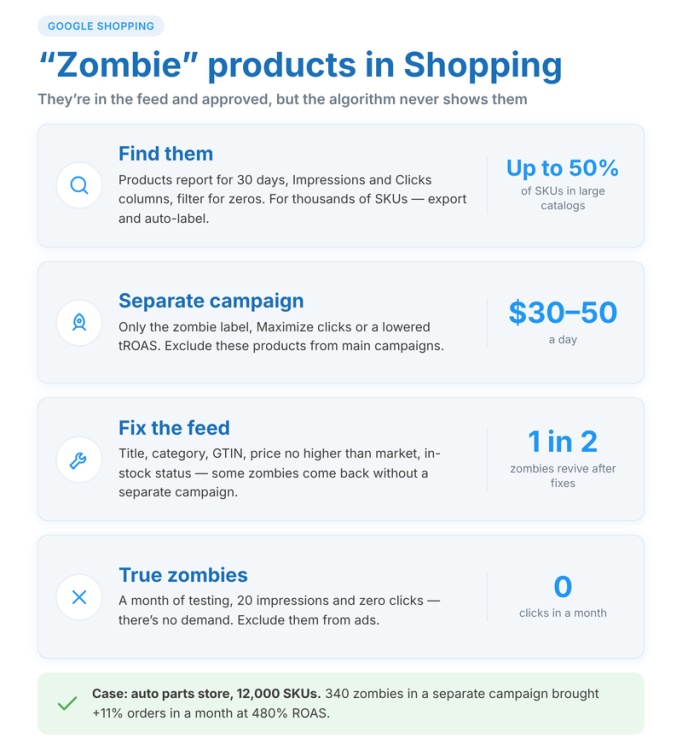
Finding “zombies” isn’t hard. Open the products report in your account for the last 30 days, add the “Impressions” and “Clicks” columns, and filter for zeroes. For catalogs with thousands of SKUs, it’s more convenient to export the data to a spreadsheet and assign a custom_label automatically—using a script or through a supplemental feed.
From here, there are two options.
Separate “zombie” campaign
Create a campaign exclusively for the zombie label. 300–500 UAH per day is enough. The strategy should be “Maximize clicks” or tROAS with a lowered target, just so it actually starts bidding on these items. Exclude them from your main campaigns to avoid competition. Once a product gets its first clicks, remove the label, and it goes back to the main structure. Check this every 2 weeks.
Fix the feed
Some “zombies” remain silent not due to the algorithm’s whims, but because of poor data. Check them for:
- title — does it include the brand, product type, model, and key attributes?
- product_type and google_product_category attributes — are they filled out and do they match the product?
- GTIN — without it, branded items will get almost no impressions;
- price — if it’s 30% above the market average, the service won’t spend on the product;
- availability — status should be in stock, not preorder.
Often, after such fixes, half the “zombies” come back to life on their own, without a separate campaign.
True “zombies” also exist: after a month of isolated testing and perfect descriptions, there are still only 20 impressions and zero clicks. This means there’s no demand—or there is, but your price isn’t competitive. Exclude such SKUs from ads completely: let them sell organically through your catalog pages, without paid traffic.
One of our clients, an auto parts store with 12,000 SKUs, found 340 items among their “zombies” that sold consistently well through price aggregators but had never been shown on Google Shopping. After launching a separate campaign, they yielded an 11% increase in monthly orders at a 480% ROAS—without increasing other investments.
How can a product feed increase sales through Google Shopping?
There are no keywords in Shopping campaigns. The algorithm matches queries based on the title, description, category, and feed attributes—essentially, this is your targeting. A weak data export limits reach more than a small budget: you simply won’t enter the auctions where people are searching for you.
Therefore, before you increase your Google Shopping budget, it’s worth reviewing the attributes in Merchant Center. What to check first:
- Titles. The most impactful attribute: the first 70 characters are visible in the ad, and all 150 are used for search matching. A good formula for most categories: Brand + Product Type + Model + Key Attributes (size, color, capacity, material). An example for electronics: “Samsung Galaxy A55 8/256 GB Awesome Navy Smartphone” instead of “Galaxy A55 blue.” For apparel, on the other hand, type and gender are more important than the brand: “Women’s Winter Jacket Columbia Heavenly Hooded, Black, M.”
- Descriptions. Additional search queries are pulled from here. 500–1,000 characters covering features, use cases, and synonyms. Don’t just copy the title—write things that aren’t already there.
- Categories google_product_category and product_type. The first comes from Google’s taxonomy and should be as deep as possible (not “Apparel,” but “Apparel > Outerwear > Coats & Jackets”). The second is your internal catalog structure, which is handy for building groups.
- Images. A white background for the main photo, at least 800 by 800 pixels, with no watermarks or text. Product cards with bad photos get low CTR, are considered weak, and lose impressions.
- GTIN, brand, MPN. Without a GTIN, branded items lose a chunk of their reach and don’t appear in price comparisons. If there’s no barcode, set identifier_exists = no.
Attention: keep an eye on statuses in Merchant Center. Disapproved and limited items don’t show at all, and warnings lower their priority. Get your approved share up to at least 95% ahead of time. One bulk error (for instance, a price mismatch between the website and the feed) can send half your catalog into disapprovals.
Additional attributes that actually impact sales:
- sale_price — discounted items get a badge and a higher CTR;
- shipping and delivery settings in Merchant Center — without these, you might face impression limits;
- availability — update at least once a day, and for fast-moving items, every few hours;
- custom_label_0–4 — for segmentation by margin, seasonality, bestsellers, and stock levels.
With thousands of SKUs, edit the feed using rules, not manually. Merchant Center has feed rules: you can bulk-add the brand to the beginning of titles, pull sizes from another field, or remove unnecessary words. Supplemental feeds let you add attributes without touching the primary export from your CMS.
Based on the experience of agencies working with e-commerce, the feed takes about a fifth of the time but provides more than half of the ROAS growth. Bids determine the price of traffic, but the feed determines what kind of traffic it will be in the first place.
How will expanding reach help scale sales through Google Shopping?
Once the structure is built and current auctions hit their ceiling, it’s time to look for new demand. This is horizontal scaling of Shopping ads—not throwing more money at old auctions, but finding new ones.
Impression share is your compass. In the interface, there are two metrics: “Impression share” and “Search lost IS (budget / rank).” If loss due to budget is 30%: money can still work, increase it. Loss due to rank means the problem lies in bids or feed quality, not money. An 85%+ share means demand is tapped out, and you need other sources.
Where to find volume:
- New regions. Operating in Kyiv and the region? Add Lviv, Odesa, Dnipro, Kharkiv. It’s better to use separate campaigns or at least bid adjustments: conversion rates and shipping costs vary between cities. A furniture store, for instance, might find CPCs in regional capitals to be 40% lower with the exact same conversion rate.
- Fresh categories—things not yet in your ads. The simplest and most often overlooked way to increase sales through Google Shopping: expand your inventory by 20–30%, and the budget will find its own use.
- Expanding selection within categories. More sizes, colors, bundles—each variation captures its own search queries.
- Devices. If mobile traffic yields a 450% ROAS compared to 700% on desktop—don’t turn it off; break it out into a separate campaign with a different tROAS.
- Audiences. Add lists of site visitors, buyers, and similar audiences in “Observation” mode with a positive bid adjustment of +20–40%. This doesn’t directly expand reach, but it boosts the return on additional investments.
- Brand and non-brand separately. For Standard Shopping, create two campaigns: a non-brand one with high priority and “Your Brand” as a negative keyword, and a brand one with low priority. This reveals the true return of cold traffic, allowing you to scale exactly that.
Expansion through search queries is a separate story. You can’t add keywords to Shopping, but you can control search via negative keywords and campaign priorities. The classic “three-tier” setup:
- Low priority—catches everything, with high bids or a soft tROAS. Exact model name queries land here.
- Medium priority—model phrases are excluded using negative keywords. Category-level queries operate here.
- High priority—both model and category queries are excluded. Only the broadest queries remain, running on low bids.
This setup requires precision with negative keywords but gives you total control over how spend is distributed across hot, warm, and cold searches. Growing in such a structure is easier: you instantly see which tier has hit a ceiling and which still has room.
How to control profitability when scaling ad revenue?
Uncontrolled growth always ends the same way: turnover goes up, but there’s less money in the bank. To scale a Google Shopping campaign and stay in the black, monitor not just ROAS, but a set of metrics over the right timeframes.
What to look at weekly:
- Spend and conversion value per segment, not the overall total—the latter hides failures in individual groups.
- Weekly and monthly ROAS: the first shows the reaction to recent changes, the second shows the trend.
- Impression share and lost IS due to budget—these indicate where there’s still headroom.
- CPC. If it grew by 30%+ with the same ROAS, the algorithm has started buying expensive auctions, and returns will soon trend downwards.
- Conversion volume in absolute numbers: an 800% ROAS on 4 orders means nothing.
What to calculate monthly:
- Net profit: revenue multiplied by margin, minus ad spend. The only number worth judging success by.
- Profit per segment. Bestsellers, high margin, mid-performers, “zombies”—where is the real money, and what is just turnover.
- Repeat purchase rate. If ads bring in returning customers, the acceptable ROI can be lowered below break-even for the first order.
Evaluation timeframes are a separate topic. After any change (amount, goal, structure), don’t draw conclusions before 5–7 days have passed: learning phase plus tracking delays mean some orders are recorded 2–3 days after a click. A drop in the report the next day isn’t an actual drop yet.
Attention: evaluate results with the attribution window in mind. By default, conversions are credited to the click date, not the purchase date. Data for the last 3–5 days is always underreported—orders are still “arriving.” Compare completed weeks, not “yesterday to the day before yesterday.”
Finally, a word on tools. With a spend of up to 50,000 UAH a month, standard Google Ads and Merchant Center reports are enough. Beyond that, it’s worth building a Looker Studio dashboard tying in margin data from your CMS. Then the question of “how to scale Google Shopping” turns from guesswork into a simple check: which segment is profitable and where hasn’t reach hit the ceiling yet. Put your funds there.